
Plesk Panel Access from WHMCS Client Area

After purchasing a virtual hosting service in WHMCS, you can access the Plesk control panel to manage your website, domains, email, and databases.

Steps to access Plesk:

1. Log in to your WHMCS client area
Go to: https://idhost.telecom.kz
Sign in with your account.

2. Open the «Services» section

3. Select your active virtual hosting service
Click the row of the required service.

4. Open Plesk
Inside the service card, you will see the button: 
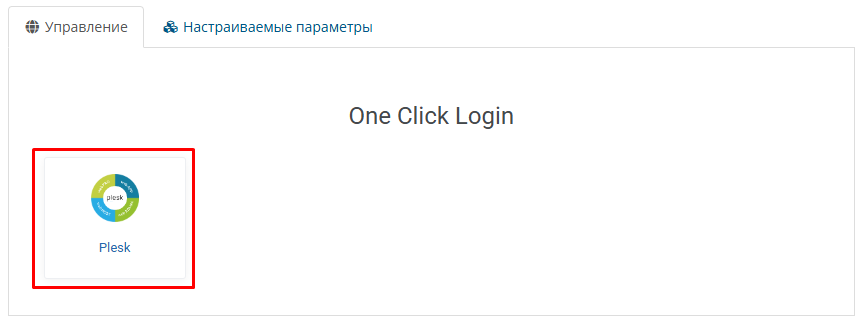
«Plesk»

Click it to be automatically redirected to the Plesk control panel.

  • 10 Users Found This Useful
Was this answer helpful?

Related Articles

SSH access on virtual hosting

Please note that SSH access is not provided on virtual hosting. SSH connectivity is available...

Adding a Domain to Plesk Hosting

1. Log in to the Plesk control panel.2. In the «Websites and Domains» section, click «Add...

Adding a Subdomain in Plesk Hosting

1. Log in to the Plesk panel.2. To add a subdomain/domain alias, in the «Websites and Domains»...

Доступ к Веб-статистике

1. Войдите в панель управления хостингом Plesk. 2. Раздел статистики защищен паролем. В разделе...

Параметры соединения с базой данных

Войдите в панель управления хостингом Plesk     2. Перейдите в раздел Базы данных....